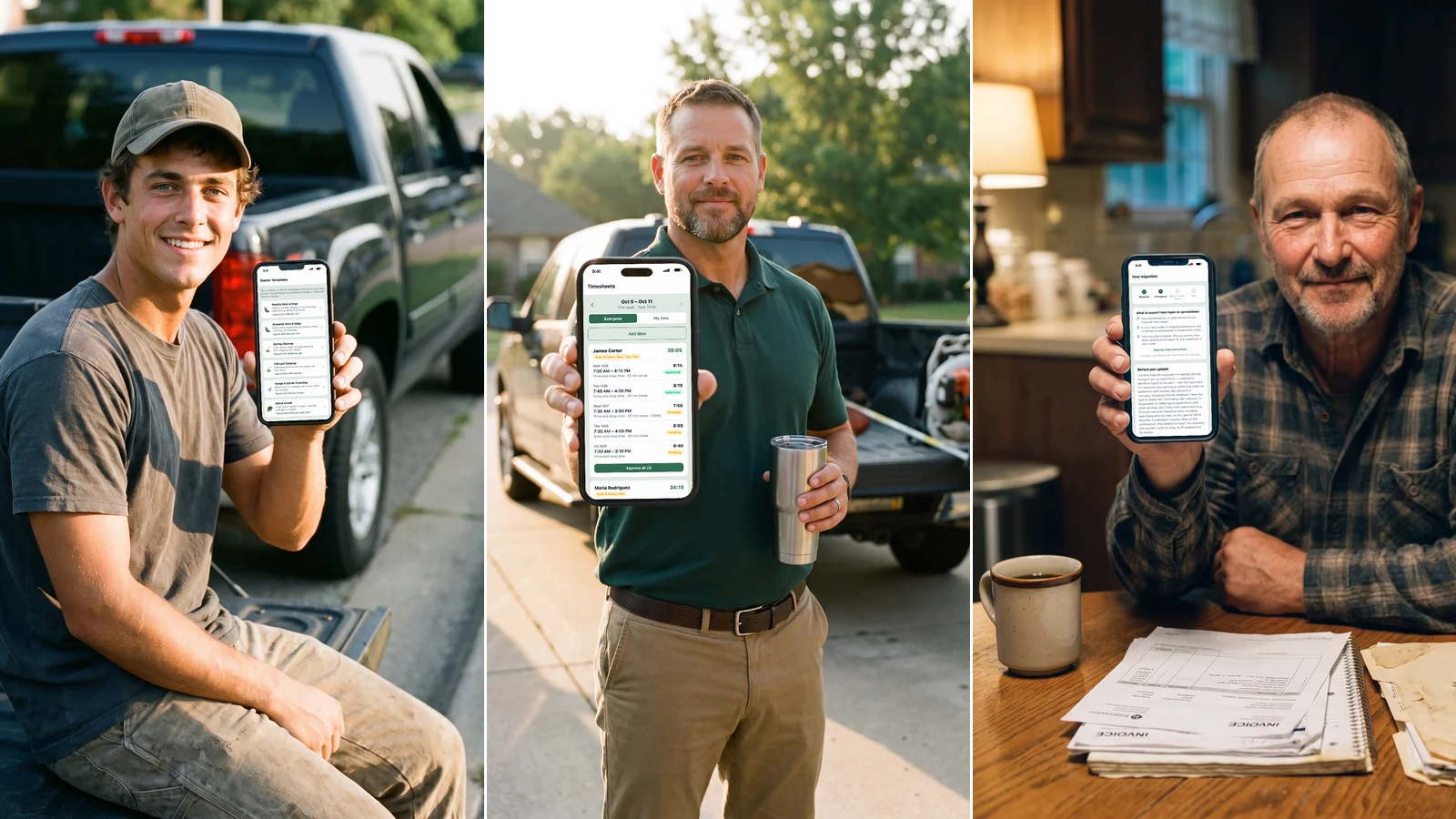
What's New in Lawnzie: iPad, Customers, Auto-Pay and a Crew Time Clock
Lawnzie now runs full-screen on iPad, keeps your whole customer list with one-tap review requests, bills recurring customers automatically, and clocks your crew in and out. Here's what shipped in the last two weeks and where to find it.
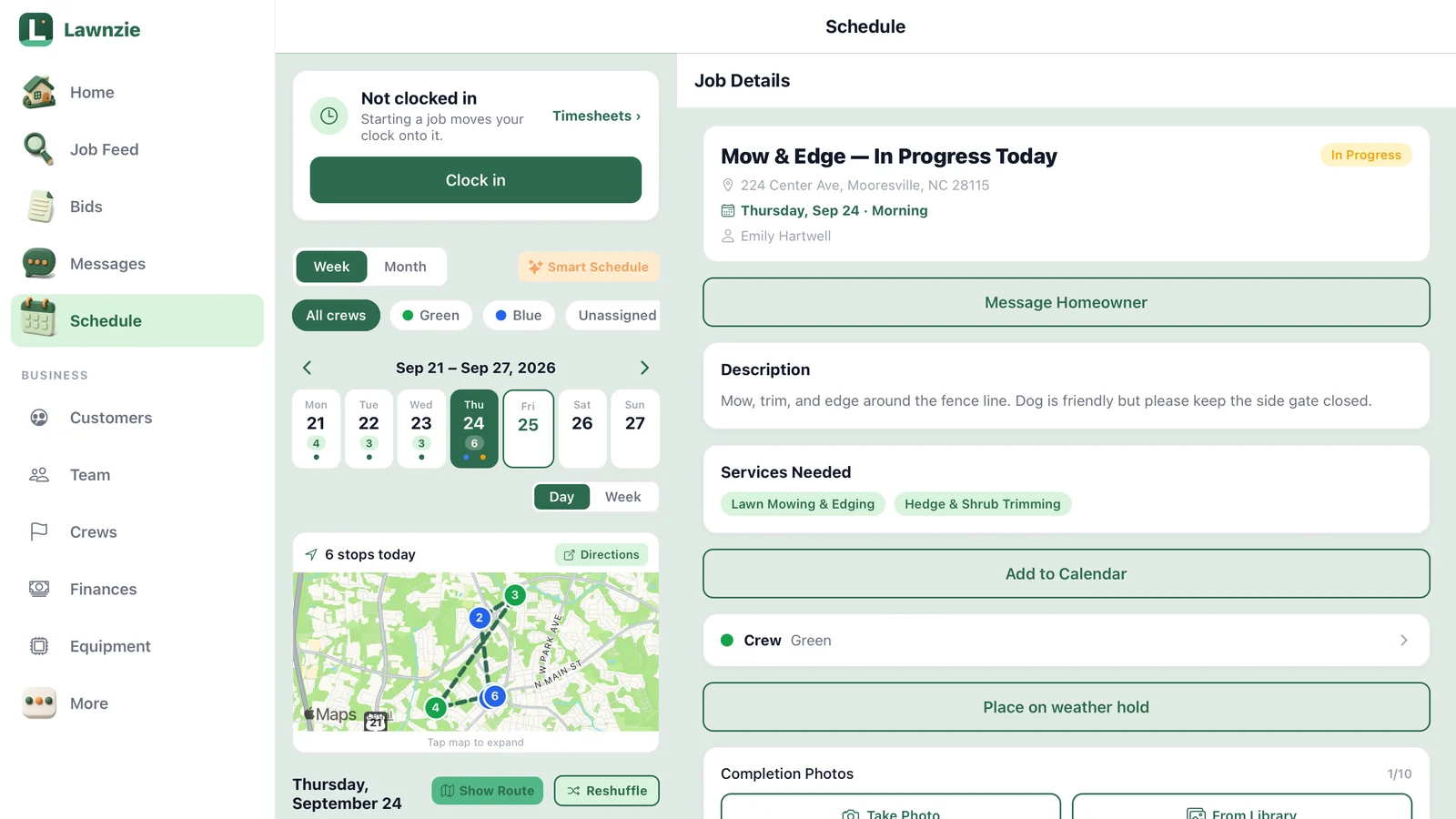
A lot has shipped in the last two weeks. This is the first of our regular roundups: every two weeks we'll post what's new, what it costs, and exactly where to find it in the app.
Lawnzie on iPad
Update Lawnzie to version 1.0.4 from the App Store and open it on an iPad.
Hold the iPad sideways (or use a 13-inch iPad either way) and you get a sidebar with everything in reach: Home, Job Feed, Bids, Messages and Schedule, plus Customers, Team, Crews, Finances and Equipment. The list and the details sit side by side. Tap a job on the left and it opens on the right, without losing your place in the list. That works on Schedule, Job Feed, Bids, Messages, Customers, Equipment and Service Templates.
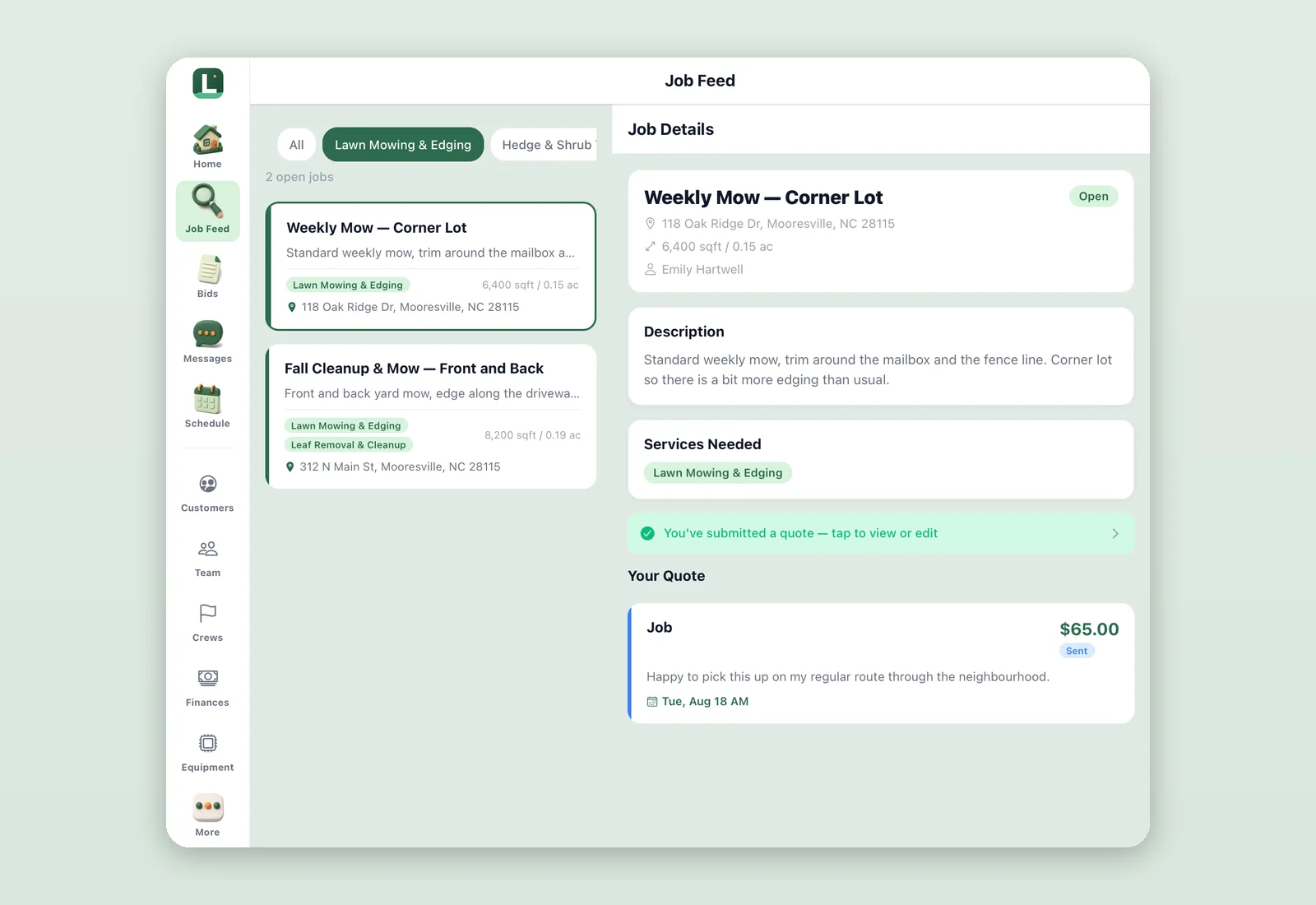
If you use a keyboard with your iPad:
- ⌘1 to ⌘5 jump between Home, Job Feed, Bids, Messages and Schedule
- ⌘N starts a new quote
- ↑ and ↓ move through a list, and Esc closes the details
- ⌘F jumps to search on Customers
Split View works too. Put Lawnzie next to your email or a map, and the layout adjusts to whatever space it has.
The iPad layout is free. It's iPad-only for now; Android tablets keep the phone layout.
Customers: your whole book in one place
Open More → Customers, or tap the Customers card on your Home screen. Add customers one at a time, or import them from your phone's contacts or a CSV file.
Each customer gets their own page with the things you actually do for them: New quote, New invoice, Auto-pay and Request review. You'll see what they've paid through Lawnzie, what you've recorded as paid outside Lawnzie, any open balance, and how many visits you've completed. Below that are their next few visits, their full history, and private notes only you can see.
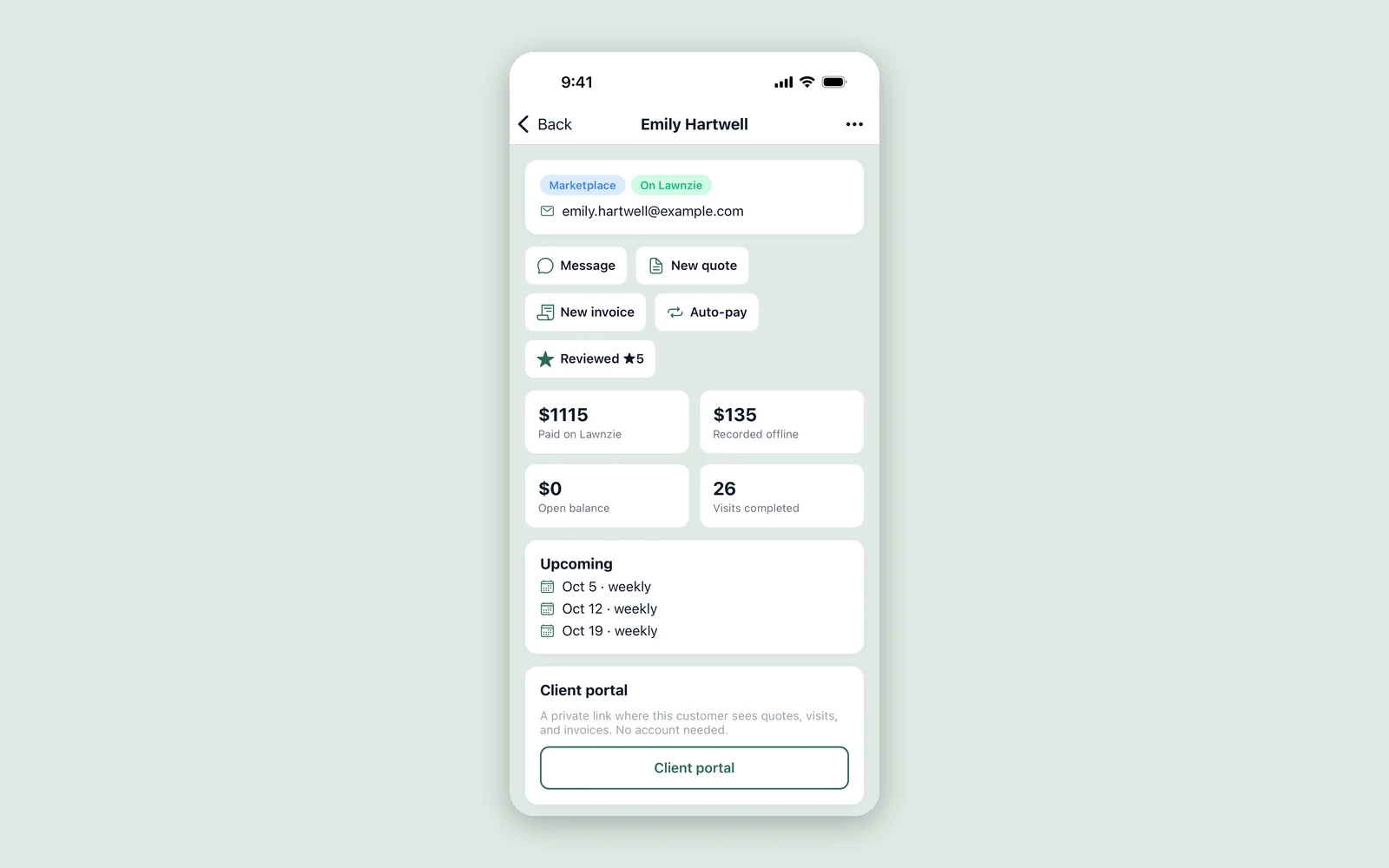
Every customer also has a client portal: a private link where they can see their quotes, visits and invoices without an account. Copy the link or text it to them from their page.
Customers is free for every pro.
Ask for reviews: one customer or a whole batch
Reviews are the fastest way to stand out to homeowners comparing pros. Asking is now one tap.
On a customer's page, tap Request review and choose how to send it:
- Email: we send it for you, with a Leave a review button
- Text: your messages app opens with the note and link already filled in, so it comes from your number
To ask a lot of customers at once, open Customers, tap Select, tick the ones you want, and tap Request reviews. Batch requests go by email.
Your customer lands on a simple page with your name, stars and a comment box. No app, no account. If you've added your Google review link under Edit Profile, they'll also see an option to share their review on Google.
Who to ask first
Your Home screen now shows how many customers you can ask for a review. Tap that card and you'll land on exactly that list.
You can send up to 50 requests a day, by email or text, with one open request per customer. Unopened emails get one reminder after 7 days. New reviews show on your Lawnzie profile and count toward your star rating, which is what homeowners filter and sort by. Our post on how to rank higher on Lawnzie explains how that works.
Review requests are free.
Auto-pay for your recurring customers (Business+)
Stop chasing weekly payments. On a customer's page, tap Auto-pay and set:
- the service, address and how often (every week, every 2 weeks or every month)
- the time of day
- when to charge: after each visit (the morning after you mark it done) or the morning of each visit
- the price per visit
Tap Send auto-pay invite. Your customer gets a link, saves a credit card once, and agrees to the schedule. After that, every visit is charged automatically and your customer gets an email each time, with a link to pause that one charge if they need to. They can cancel from their client portal, and if you change the price, they approve the new one first.
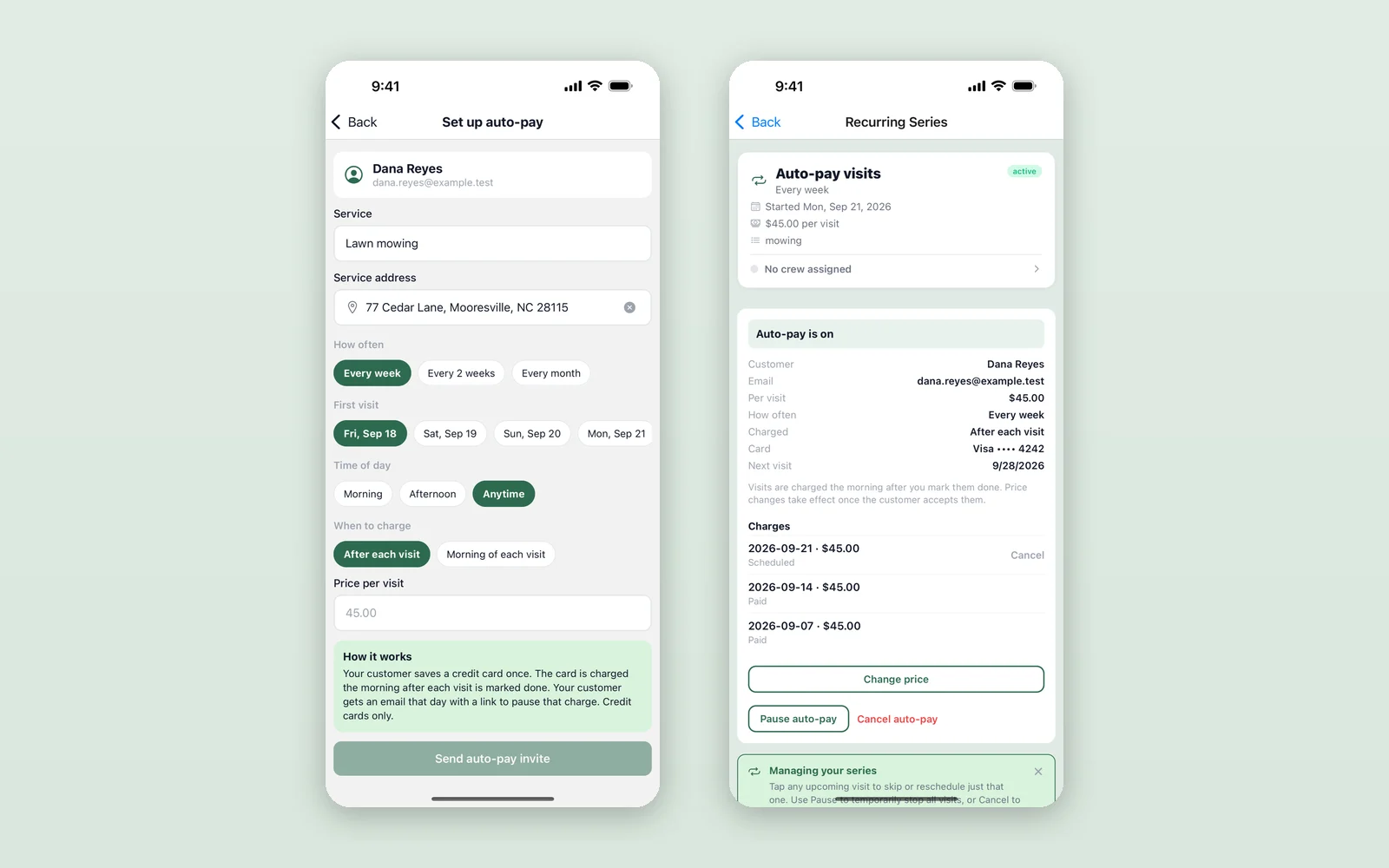
Auto-pay is part of Business+ and takes credit cards only.
A time clock for your crew (Business+)
If you run a crew, your people can now clock in and out from the Schedule tab. When they start a job, their clock moves onto that job. Time between jobs counts as drive and shop time.
You'll find everyone's hours under More → Timesheets. From there you or a manager can:
- edit a shift or add one someone forgot
- approve hours one at a time, or Approve all
- spot long days and weeks over 40 hours, which are flagged for you
- export approved hours as a CSV for Gusto, QuickBooks Payroll or whatever you use
Lawnzie tracks and approves hours. It doesn't run payroll or pay anyone.
The time clock runs on the business owner's Business+ plan. Your employees never pay anything. It shows up once you've added people under More → Team.
Draw the lot, cut out what you don't mow
Square footage from a map includes the house, the driveway and the pool. Now you can take them out.
When you build a quote (Bids → +), tap Draw Property Boundary on the property map and trace the lot. Then tap + Exclude area and trace the house, driveway, beds, pool or anything else you don't mow. Lawnzie subtracts them and fills in the net square footage as the lot size.
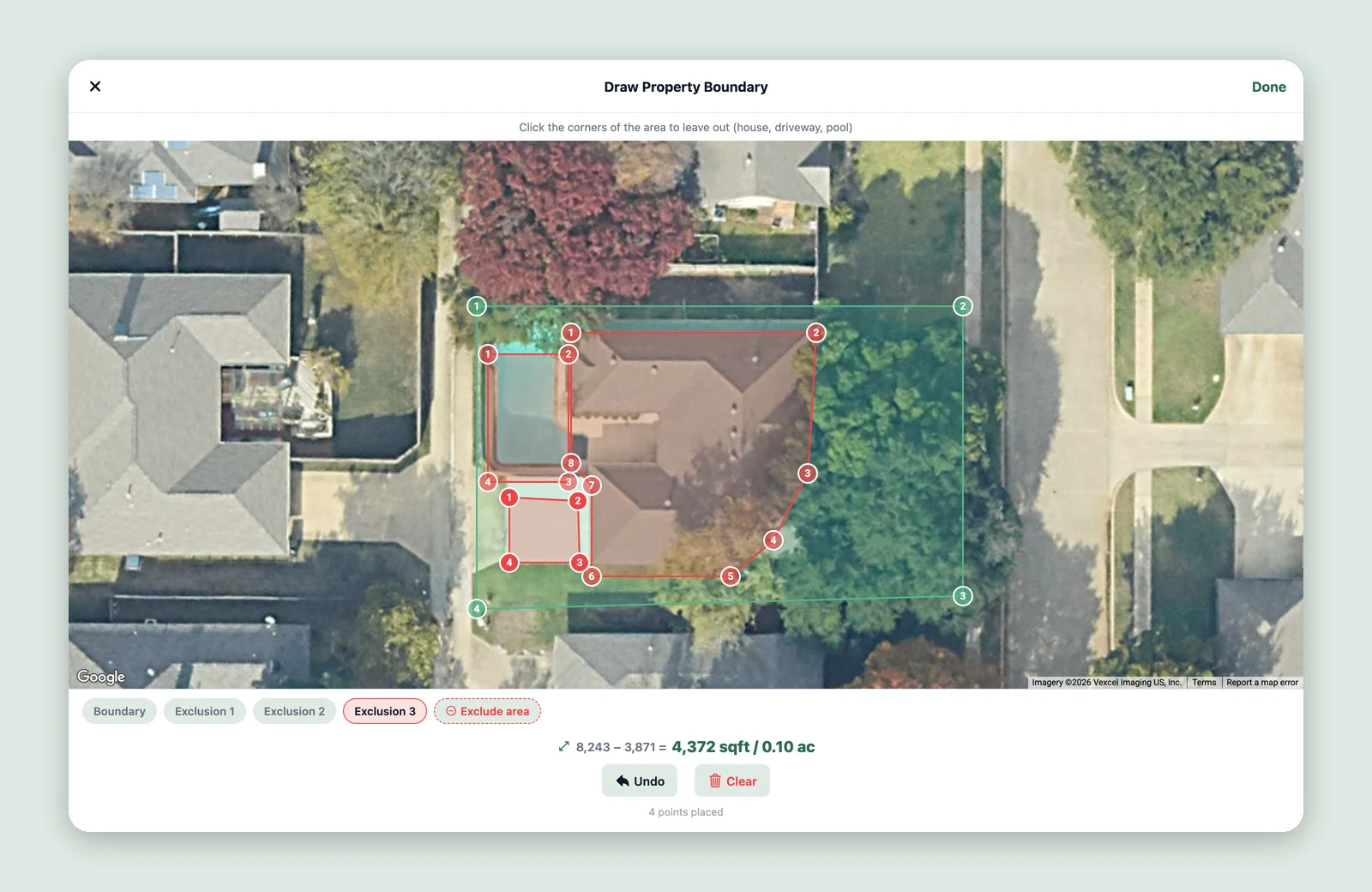
In this example the lot is 8,243 square feet. Take out the house, the pool and the patio and there are 4,372 square feet left to mow, just over half of what the map alone would suggest.
Homeowners can do the same when they post a job, so the lot sizes you see on requests are closer to the real mowable area. Analyze Lawn Area also treats excluded areas as not lawn.
Drawing boundaries is free.
Smaller things worth knowing
- Business+ from inside the app. Open More → Business+ to start or manage your plan. Checkout is a secure Stripe page. If you joined Lawnzie before September 17, that screen shows the rate you can lock in before your free period ends.
- Record cash, check, Venmo and Zelle payments on jobs and invoices, so your books show every dollar, not just card payments (Business+).
- Sign-in help. If you signed up with Google or Apple and try to use a password, Lawnzie now tells you and shows the right sign-in button.
- Completion photos. You can remove a completion photo you uploaded while the job is still in progress.
What's next
We'll be back in two weeks with the next round. If there's something you want Lawnzie to do, tell us through Messages → Lawnzie Support. The crew time clock in this post started as exactly that: a pro asking for it.
Enjoying Lawnzie?
A quick review helps other pros find us. You can leave one on the App Store, on Google Play, or on Google.
Frequently asked questions
Does Lawnzie work on iPad?+
Yes. Version 1.0.4 is on the App Store now and runs full-screen on iPad, with a sidebar and the list and details side by side. Update Lawnzie from the App Store to get it. Android tablets keep the phone layout for now.
Which of these updates are free?+
The iPad layout, Customers, review requests and drawing a lot boundary are free for every pro. Auto-pay, the crew time clock and recording cash or check payments are part of Business+.
How many review requests can I send?+
Up to 50 a day, by email, text or a mix, and one open request per customer. You can send them one at a time, or select a batch of up to 50 and email them all at once. If an emailed request goes unopened, we send one reminder after 7 days.
Do my customers need the Lawnzie app to leave a review or set up auto-pay?+
No. Review requests and auto-pay invites both open a simple web page. Your customer doesn't need the app or an account.
Does the crew time clock run payroll?+
No. Lawnzie tracks your crew's hours and lets you approve them, then exports the approved hours as a CSV file you can bring into Gusto, QuickBooks Payroll or whatever you use to pay people. Lawnzie never pays your employees.