How to Run Multiple Crews from One Phone
You hired help and now the schedule lives in your head. Here's how to set up crews on Lawnzie — invite your people, give each one a route, and dispatch the day without a single group text.
There is a specific week in a lawn care business where the wheels start to wobble. It isn't when you buy the second mower. It's the week after you hire the second guy.
Up to that point the schedule lives in your head and that works fine, because you are the schedule. Then somebody else is driving to a house you have never sent them to, and your morning becomes a group text: three addresses, a gate code, a "no, do the Henderson one first," and a photo of a mailbox so they know which driveway. By noon you have answered your phone eleven times and mowed nothing.
The tool that fixes this isn't a bigger group text. It's giving each truck its own route and each person their own login.
Step 1: Create your crews
Open the More tab and tap Crews, then Add a crew.
Name them the way you actually talk about them out loud. "Crew 1" and "Crew 2" is fine. So is "North side" and "South side," or "Marcus" and "Danny," if that's how you think about who's where. The name shows up on every job card and every schedule chip, so pick the words that will make sense to you at 6 a.m.
Each crew gets a route color — green, blue, purple, orange, red, teal, gold, or pink. This is not decoration. When you look at the day's map, every stop is a pin in its crew's color, and you can see at a glance that blue is doing a lot of driving today and green is stacked in one neighborhood. Give each crew a color you can tell apart at a glance and don't reuse them.
You can also set a daily capacity in hours — how much work that crew can absorb in a day. It's stored per crew and shown on the crew card so you have the number in front of you when you're deciding where a job goes.
There's no limit on crews and no charge for them. Two trucks or six, same price: nothing.
Name crews after routes, not people
People quit. Routes don't. If your crew is called "Marcus" and Marcus leaves in July, every job card in your app is now named after somebody who doesn't work there. "North side" survives the turnover.
Step 2: Invite your people
Back in More, tap Team, then Invite a team member.
You'll enter their email, pick a role, and choose which crew they're on. They get an email with a link. They install Lawnzie, create a free account of their own, and land on your business's work. If they already have a Lawnzie account under that email address, the invite links up automatically and they'll see a notification on their phone — no link hunting required.
Nobody shares your login. That matters more than it sounds like it does: shared logins mean you cannot tell who marked a job complete, you cannot take one person's access away without changing the password for everybody, and a departing employee walks out with your account.
Remove someone from the Team screen and their access to your business is gone the moment you tap it. Their own account stays theirs.
The four roles, and what each one can actually do
Roles aren't cosmetic here. What each role can do is enforced in the database, so the limits hold no matter what somebody taps.
Owner — you. Full control of everything: finances, payouts, expenses, equipment, business settings, and the Stripe account. Owner-only permissions stay owner-only; you cannot hand them to an employee even if you want to.
Manager — your right hand. Sees the schedule, works jobs, chats with customers, sees prices, sends quotes, dispatches work to crews, and manages crews and other team members. What they cannot touch is money and settings: no finances, no payouts, no business settings.
Foreman — runs a crew in the field. Sees the schedule, works jobs, chats with customers on their jobs, and sees prices. A foreman does not dispatch and does not manage the roster.
Crew member — does the work. Sees their crew's schedule, works jobs, and chats with the customer on the job they're on. They do not see prices. That's not a hidden field — the server refuses to send quote data to a crew member at all, so the number never arrives on their phone in the first place.
Price visibility is the setting people ask about first
The default is what most owners want: your crew sees the address, the yard, and what to do — not what you charged. If your shop runs differently, it's two switches. More → Business Settings lets the owner turn on crew member price visibility, or let foremen send quotes from the field. That screen is owner-only, and it appears once you've added your first team member.
Step 3: Put the work on a crew
Open any job you've been hired for and you'll see a Crew row with a colored dot. Tap it, pick a crew, done. That job now belongs to that route.
For recurring customers, assign the series instead of the individual visit. Open the recurring service and set its crew once — every future visit Lawnzie generates for that customer comes out already assigned to that crew. This is the part that saves the most time, because most of a real book of business is the same houses every week. Set the route once in spring and it stays set.
Background-checked jobs check the whole crew
If a job requires a background check, Lawnzie will only let you assign it to a crew where every member is cleared. Try it with an unchecked crew and the assignment is refused with an explanation. That's deliberate — a homeowner who paid attention to the badge is trusting who shows up, not who booked it.
Step 4: Run the day
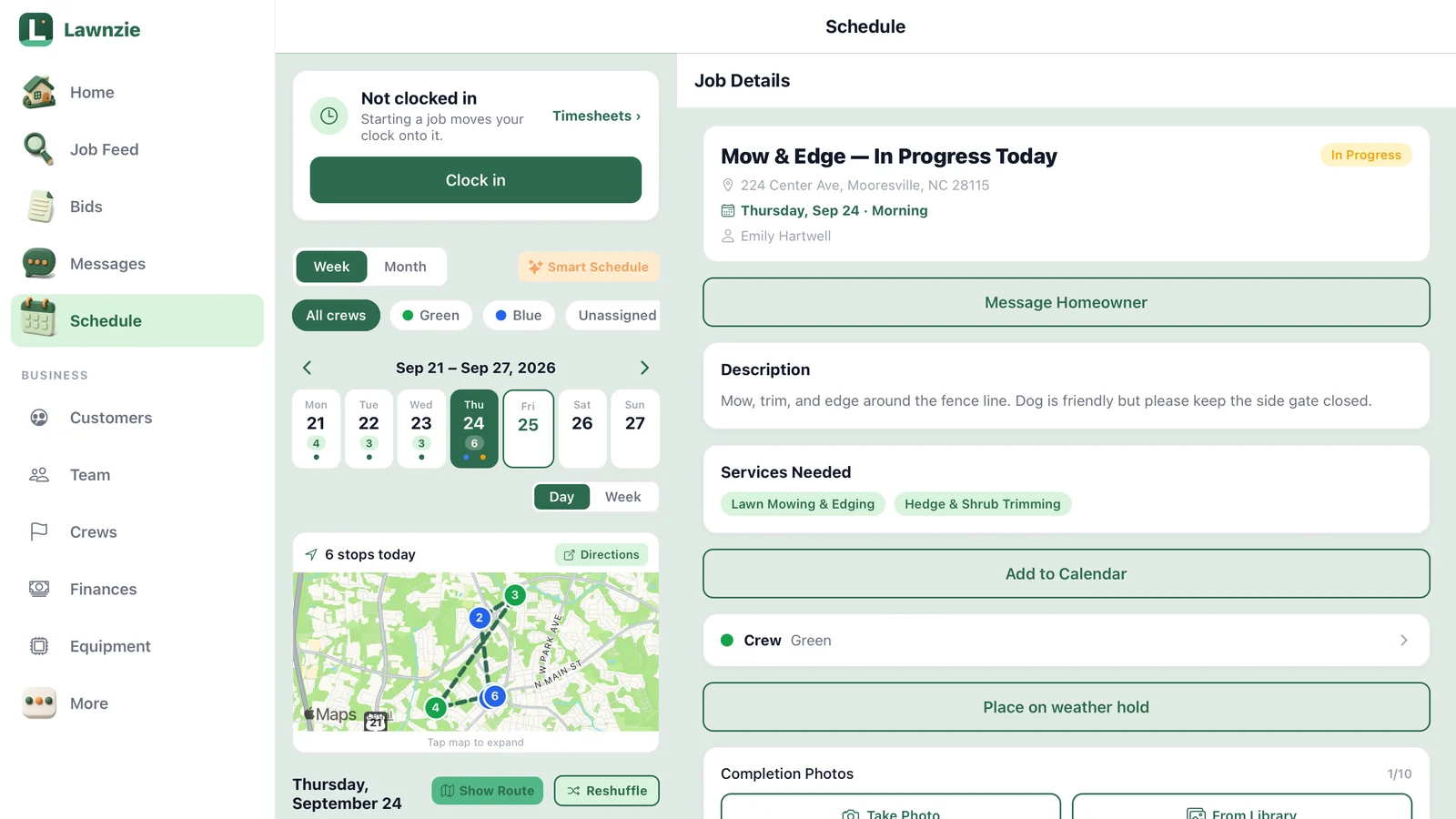
Open Schedule and you'll see a row of crew chips across the top: All crews, one per crew in its own color, and Unassigned.
That last chip is the one to check every morning. Unassigned is your gap — work that's on the calendar with nobody driving to it. If that chip is empty, your day is dispatched.
Tap a single crew and the whole screen narrows to that route: their jobs, their map, their stop order. Drag the stops into the order you want them run. That order is saved per crew, per day, on the server — not on your phone. The foreman opening the app in the truck sees the same sequence you just set at the kitchen table, and so does everybody else on that crew.
Your people don't see the chips. They don't need to. An employee on a crew opens the schedule and sees their crew's day, already filtered, with the crew name at the top. There's nothing to choose and nothing to get wrong.
What this actually changes about your morning
The group text disappears, and so do the eleven phone calls.
The gate code is on the job. The photos of the last visit are on the job. The homeowner's note about the dog is on the job. When the crew finishes, they mark it complete and add photos from their own phone, and the homeowner gets notified without you touching it.
You stop being the router. You become the person who set the route last night in four minutes.
Working for more than one business
One more thing worth knowing, because it comes up with good help: a person can belong to more than one business on Lawnzie, and can run their own solo operation at the same time.
If somebody on your crew also mows a handful of their own accounts on Saturdays, that's not a conflict and it doesn't require a second account. They switch between businesses from the More tab. Your work and theirs stay completely separate — your business never sees their customers, and they never see yours.
For a growing shop this is a hiring advantage. You can bring on somebody who already has a few of their own accounts without asking them to give those up.
What it costs
Nothing.
Crews, employees, roles, dispatch, per-crew routes — all of it is included, with no per-seat charge. Getting jobs is free; Business+ adds the business tools.
Set it up on a rainy day, not a busy one
This is a thirty-minute job, once. Create your crews, invite your people, then walk your recurring customers and set each series to a crew. After that, every visit for the rest of the season shows up already dispatched.
The short version
- More → Crews → Add a crew. One per truck. Give each a color you can tell apart.
- More → Team → Invite a team member. Email, role, crew. They get their own free account.
- Assign the recurring series, not the visits. Future visits inherit the crew automatically.
- Check the Unassigned chip every morning. Empty chip, dispatched day.
- Drag the stops into order once. The crew running the route sees the same order you set.
You hired help so you could do more work, not more admin. Half an hour of setup is what makes that true.
Frequently asked questions
Can I manage a crew through the Lawnzie app?+
Yes. Open the More tab and you'll find Crews and Team. Crews are your routes — one per truck or team. Team is your people. You invite an employee by email, pick their role, and put them on a crew. They download Lawnzie on their own phone, accept the invite, and see that crew's schedule.
Do my employees need their own Lawnzie account?+
Yes, and that's the point — nobody shares a login. Each person gets a free account of their own, joins your business through your invite, and sees only what their role allows. You can change their role or remove them at any time, and their access ends immediately.
Can I stop my crew from seeing what I charge?+
Yes, and it's the default. Crew members cannot see prices at all — not hidden in the interface, but actually withheld by the server, so the number never reaches their phone. Managers and foremen do see prices. If you want it the other way round, the owner can switch it on under More → Business Settings.
How many crews can I have?+
As many as you run. There is no crew limit and no per-seat charge for crews, employees or dispatch.
What happens to my route order when I split into crews?+
Each crew gets its own route order for each day, saved on the server rather than on one phone. Drag the stops into the order you want and every device on that crew sees the same sequence — you set the route once and the crew that runs it sees it.
Can one person work for more than one business on Lawnzie?+
Yes. Someone can run their own solo business and be on your crew, or be on two businesses' crews. They switch between them from the More tab, and each business only ever sees its own work.